The Multimedia Gallery app creates a responsive image and video gallery that scales to any device — upload images of any size or embed YouTube/Vimeo videos as popups, with per-record captions, links, display dates, and viewer controls.
💡Quick answers
- What can I display in a Multimedia Gallery? Responsive images (any size) and embedded videos from YouTube or Vimeo — each as a separate record with title, caption, and optional link.
- How do I add a record? Click Edit > New Record, add a title, upload an image with alt text, optionally add a link or video embed code, set display dates and viewers, activate, and save.
- How are videos displayed? As a popup window triggered by a customized link — paste the iframe embed code from YouTube or Vimeo into the Video Embed Code field.
- Does this app come pre-installed? No — your Site Administrator must download and import it as a Custom App first.
Create a responsive media gallery
The Multimedia Gallery is a responsive media gallery that displays images and embedded videos on any device and provides top-notch accessibility for all users. This app allows images of any size to be uploaded. The gallery will assume the width of the container it's placed in and the height will scale proportionally for each image as the gallery transitions from one slide to another.
Images
This app resizes any size image you upload based on the width of your viewing device and the height according to scale. You can manage showing and hiding titles and captions on a per-record basis, and set up an external link while providing custom link text, link URL, and link target for each record.
Videos
Embedded videos display as a popup window on the end-user website. The video popup is triggered by your customized link set up in each record. This video link is used along with the iframe video embed code that you get from a 3rd-party provider like YouTube or Vimeo.
Download the Multimedia Gallery app
Add the Multimedia Gallery app
Drag the MMG app onto your page.
* Items marked with a red asterisk are required
- Select Edit.
- Select New Record.
- Type your Title and optional Caption.
- Upload an Image and type an Image Alt Text for use with screen readers. Make the text descriptive of what is being displayed.
- To provide a URL for the record, select Link Record and type the Link Text and Web Address. Choose if you want to Open in a new window.
- To provide a video for the record, select Embed a video and type the Video Link Text and Video Embed Code.
- Select Tags to add tags to the record.
- Select Display Duration to select a Start Date and End Date for the record.
- Select Viewers to assign specific users who can view the record. By default, all visitors can view the record.
- Select Activate on my page to display the record.
- Select Save when finished.
Edit a multimedia gallery
- From Site Manager, navigate to the page with the Multimedia Gallery.
- Select Edit.
- You can update information found under Records, Tags, Display Duration, and Viewers.
- Select Save.
Remove a multimedia gallery from a page
- From Site Manager, navigate to the page with the Multimedia Gallery.
- Select Delete
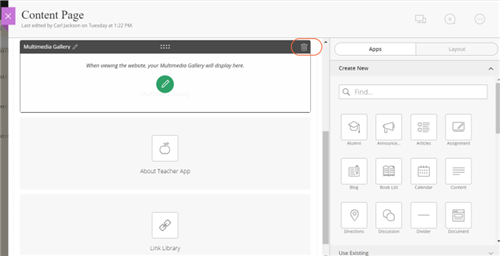
- Select Yes on the Confirmation dialog.
Multimedia gallery user guide