Adding an RSS feed to your mobile app keeps users updated with the latest content from your Composer website — configure feeds in App Config, then copy the RSS link from your news board's live page.
💡Quick answers
- How do I add an RSS feed to the mobile app? In Communications HQ, go to Settings > App Config, select your district or school, open the Feeds tab, click the orange RSS icon, and paste your feed URL.
- Where do I get the RSS link from Composer? Set up a Default Board Post Page, enable RSS in the Posts module Board Settings, then right-click the feeds icon on the live page and copy the link address.
- What must be set up in Composer first? A Default Board Post Page created and RSS enabled in Board Settings for the board you want to feed into the app.
In this Article
- Step 1: Navigate to your Mass Notification dashboard
- Step 2: View Mobile App Configuration screen
- Step 3: Configure the feeds for that district or school.
- Step 4: Copy the RSS from your Composer website
- Step 5: Paste RSS into New RSS/Atom Feed field
Step 1: Navigate to your Mass Notification dashboard
On your Mass Notifications dashboard, click on the Settings tab.
Step 2: View Mobile App Configuration screen
In the Settings screen, click to open the App Config tab where you will view the Mobile App Configuration screen. Click immediately on a District or one of the Schools to configure RSS for that district or school.
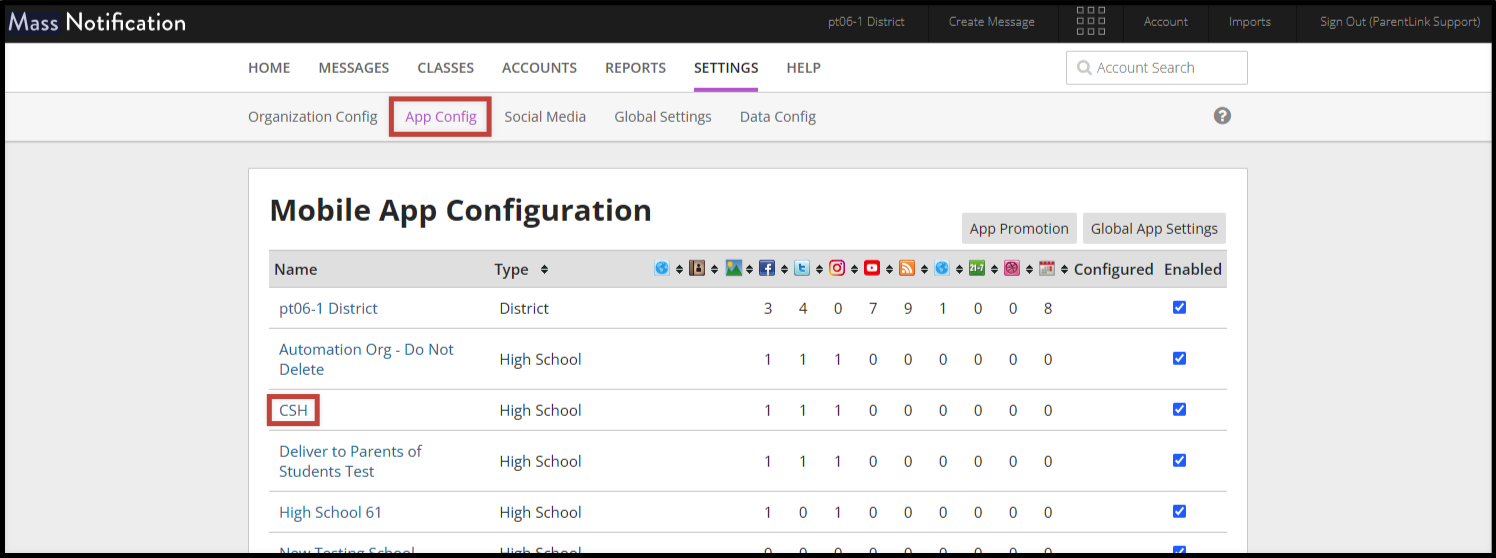
Step 3: Configure the feeds for that district or school.
Click on the Feeds tab and then the orange RSS icon.
Step 4: Copy the RSS from your Composer website
Composer in your CMS is where you will access the RSS to paste into your Mass Notifications platform. In order to have the RSS icon display on your Composer page's Post element, a few things have to be set in place first:
- Create a Default Board Post Page (DBPP).
- Navigate to the Posts module > open up Board Settings.
- Find the Default Board Post Page section and select the DBPP you created that will now be set as the default for this board.
- Check the box next to Enable RSS. Click Save.
- Navigate to the page where the news posts display that you'd like to feed onto your mobile app and open the page in live view.
- Click on the live page to open up a post onto your DBPP. A Feeds icon will now display. Right click on the feeds icon, and select Copy Link Address.
Step 5: Paste RSS into New RSS/Atom Feed field
A pop up will appear where you paste the RSS link that you just copied into the field in the pop up.